Administrator Introduction
User & Role Administration
Creating Roles
The administrator is the person who will be configuring Salesboom.com for your company. The first account created will be the system administrator
account. This introduction explains everything the administrator needs to know about setting up Salesboom.com for use across its organization.
User & Role Administration
The first thing that you, as an administrator, need to do is to create User Roles. What are user roles? Roles are a way of
organizing your company's permission hierarchy. Users assigned to a particular role have access only to items in their own role and roles
below. For example, your company's role hierarchy could be set up like this:
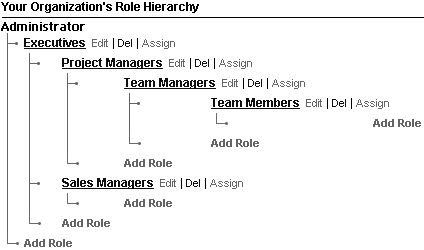
We'll assume that the security & access settings are set to private, being the default setting. That being the case, as set in the example above, users assigned to Executives have access to only those roles beneath them by default. Project Managers have access to information from their own role as well as any roles beneath them - i.e. Team Managers and Team Members - but do not have access to Executives. In addition, users do not have access to information belonging to users of the same role. For example, one Executive user cannot access information owned by another Executives user by default, unless the information is explicitly shared among the Executives. Keep in mind that Administrator is a role given only to System Administrators.
We'll assume that the security & access settings are set to private, being the default setting. That being the case, as set in the example above, users assigned to Executives have access to only those roles beneath them by default. Project Managers have access to information from their own role as well as any roles beneath them - i.e. Team Managers and Team Members - but do not have access to Executives. In addition, users do not have access to information belonging to users of the same role. For example, one Executive user cannot access information owned by another Executives user by default, unless the information is explicitly shared among the Executives. Keep in mind that Administrator is a role given only to System Administrators.
Creating Roles
- Click the Control Panel link located in the top right corner of the page. This takes you to the Personal Setup page.
- Click the Role Hierarchy link in the User & Role Administration section. This takes you to the Role Hierarchy page. This page displays Your Organization's Role Hierarchy.
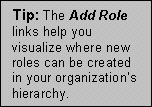
- A new Role can be created under any existing role or directly under your organization, thus building a tree-like structure. Click an Add Role link where you would like to create a new role. This takes you to the New Role page.
- Fill in the required fields. See Role Data Fields for more information.
- Click the Save button to save the role. Click the Save & New button if you want to save the role and then create another role. Click Cancel if you do not want to create a new role.
 |
| Role Name | A descriptive name to represent the role and the types of users it contains. For example, a top-level role might be Executives. A role you create under Executives might be Department Managers, and so on. |
| This Role reports to | Determines where this role will be placed in your organizational hierarchy. This role will be inserted under the role specified in this field. Set this field to none specified to create this as a top-level role. |
| Role Name as displayed on reports | Specifies how you would like this role to be represented on reports. This is not a required field. |
Managing Users
Creating Users
Now you need to create users to place in the roles you just created.
- Click the Control Panel link located in the top right corner of the page. This takes you to the Personal Setup page.
- Click the Add Users link in the User & Role Administration section. This takes you to the New User page.
- Fill in all required information.
- Click the Create button to create the new user. Click Cancel if you choose not to create the user.
User Data Fields
| First Name | The employee's first name. |
| Last Name | The employee's last name. |
| The employee's company email address. | |
| Username | The username used to log into their salesboom.com account. |
| Wireless Email | Email address for the user's wireless account. |
| Title | The employee's title within the company. |
| Company | The company the employee works for. The default is the organization in which this account is created. |
| Department | The department the employee works in. |
| Division | The division the employee works in. |
| Password | The password used to log into their salesboom.com account. |
| Password (confirm) | Retype the password to confirm. |
| Role | The role in the organizational hierarchy the user will belong to. |
| Profile | Displays whether the user is a System Administrator, Standard User, etc. |
| Phone | The users phone number. Likely their business number. |
| Fax | The number at which the user can receive faxes. |
| Mobile | Cell phone number. |
| Email Encoding | The type of security encryption used in emails sent to and by this user. |
| Employee Number | The employee's identification number within the company. |
| Start of day | What time the user usually starts their shift. |
| End of day | What time the user usually ends their shift. |
| State/Province | The state or province in which the employee lives. |
| Zip | The employee's Zip or Postal Code. |
| Country | The country in which the employee lives. |
| Time Zone | The time zone in which the employee resides. |
| Locale | Spoken language and language origin. |
| Language | Language used in correspondence. |
Managing User Accounts
From time to time you will need to make changes to a user's account.
User Login History
Viewing Login History for a User
- Click the Control Panel link located in the top right corner of the page. This takes you to the Personal Setup page.
- Click the Manage Users link in the User & Role Administration section. This takes you to the User List page. This page lists every user account currently existing in your organization.
- Only a few key data fields are displayed for each user. To view a user account in detail, click a username link, which is underlined to signify it is a link. This will take you to a detailed view of that user's account. Also displayed is the user's login history.
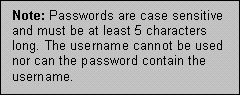
- You are now able to edit the user's account or change the user's password.
- Click the Edit button. This will take you to the User Edit page for that user.
- Make your changes to the account.
- Click the Save button to save your changes. Click Cancel if you do not want to make any changes.
- Click the Change Password button. This takes you to the Change Password page.
- Enter the user's current password in the Old Password field.
- Enter the user's new password in the New Password and Verify New Password fields.
- Click the Save button to apply the new password. Click Cancel if you do not want to change the password.
Editing User Accounts
 |
User Login History
Viewing Login History for a User
Login history allows you to see when and from where a user has logged in or attempted to log into their account.
- Click the Control Panel link located in the top right corner of the page. This takes you to the Personal Setup page.
- Click the Manage Users link in the User & Role Administration section. This takes you to the User List page. This page lists every user account currently existing in your organization.
- Only a few key data fields are displayed for each user. To view a user account in detail, click a username link, which is underlined to signify it is a link. This will take you to a detailed view of that user's account. The user's login history is listed below the user's account details.
- The following information is available:
| Login Time | Precise time when the user attempted to log in. |
| Source IP | The IP address of the computer they logged in from. |
| Login Type | Specifies whether the login was successful. |
| Status | Specifies if the login was successful. |
Viewing Login History for All Users
You can also view login history for every user in your organization simultaneously. The default list order is chronological, starting with the most
recent. You can sort by different columns by clicking on a column title.
- Click the Control Panel link located in the top right corner of the page. This takes you to the Personal Setup page.
- Click the Login History link in the Administration Console section. This takes you to the User Login page. This page lists the most recent login activities for every user account currently existing in your organization.
- To view a user's account in detail, click on a username listed in the username column. This will take you to a detailed view of the user's account.
Administration Console
Security and Access Settings
The first step in setting up your organization was to create roles to establish your organizational hierarchy. A user's position in the
role hierarchy determines what data they are able to see. The next step is to set up your security and access settings. These settings
are applied across your entire organization and will determine the type of access users will have to data that their role allows them to
currently see.
- Click the Control Panel link located in the top right corner of the screen. This takes you to the Personal Setup page.
- Click the Security and Access Settings link in the Administration Console section. This takes you to the Security Access Settings for your organization.
- Assign security access for each data type. There are three available security levels:
- Click the Update button to apply the security and access settings you have chosen.
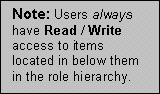 |
Read Only: Users will be able to see all items in the organization. They will not be able to edit or delete items on the same level or above them in the role hierarchy. However, they will have Read/Write access to items located below them in the hierarchy.
Read/Write: Users will have full access to all items in the organization.
Disk Storage
Disk Storage allows you to see how much disk space your entire salesboom.com organization occupies. Disk storage is listed in two ways:
By Record Type and by Storage Utilization per each user.
- Click the Control Panel link located in the top right corner of the screen. This takes you to the Personal Setup page.
- Click the Disk Storage link in the Administration Console section. This takes you to the disk storage page for your organization.
- You can now see how much disk space each user is occupying as well as how much disk space each data type is occupying.
- The Total amount of disk space used by your organization is shown at the bottom of the Storage Utilization by Record Type.
Customize Selection Lists
Some data fields have a drop down box containing a list of possible selections. The selection list of some of these drop down boxes is customizable.
Why would you want to customize these lists? Well, for example, when creating an account you will likely want to specify which industry the account
is involved in. In this case, let's assume that the Industry drop down box does not contain the industry that your new account is involved with.
Through Customize Selection Lists you can add your account's industry to the Industry drop down box list. You can also remove
items from a drop down list if you like.
- Click the Control Panel link located in the top right corner of the screen. This takes you to the Personal Setup page.
- Click the Customize Selection Lists link in the Administration Console section. This will display a list of all customizable drop down boxes.
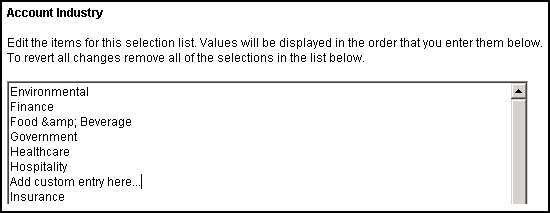
- Select the link to drop down box you want to change. With our previous example in mind, you would choose the Account Industry link.
- You will now see a list of the items available in the drop down box. The list is in plain text format. Remove or add any items you need.