The Reports tab page contains a variety
of standard reports for leads, accounts, contacts, opportunities and cases.
Also available are administrative reports and reports that use charts.
To generate a report simply click on a report link. Each report link is
followed by a brief description of the report.
Creating Custom Reports
Custom reports allow you to view only the information
that is important to you. You can create reports for leads, accounts, contacts,
opportunities, forecasts, cases, solutions and documents. A step-by-step
wizard guides you through the process. Click Cancel at
any time to exit the wizard. Click Save As at any time
to save the report using criteria you have entered to that point. Click Run
Report at any time to run the report using criteria you have entered
to that point.
Editing and Deleting Custom Reports
Filtering Custom Reports and Views
- Click the Reports tab located toward the top of the page. This will take you to the Reports tab page.
- Click the Add Custom Report button located to the right of the Customized Reports section. This will begin the custom report wizard.
- Select the type of data to generate the report for and click Continue.
- Row Count: Gives total number of duplicate rows or records.
- Annual Revenue: You can choose to display the accumulative, average, largest or smallest value found in the Annual Revenue field.
- No. of Employees: You can choose to display the accumulative, average, largest or smallest value found in the No. of Employees field.
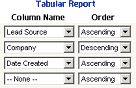
- Tabular Step 4: Select a column(s) to sort the report by. Then choose to either sort in ascending (a-z, 1-10 etc.) or descending (z-a, 10-1 etc.) alphabetical order. Click Continue when ready. The report will be sorted according to the first column you specify. If identical entries in that column are found they will be sorted by the second column you chose and so on until the last specified sorting column is reached. The report can be sorted by up to four columns.
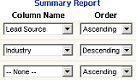
- Summary Step 4: Using the provided drop down boxes, specify how you would like to group the report data. You can group the data by up to three columns. Suppose, for example, you choose to group by two columns, Lead Owner and then Industry. Records with identical lead owners will be grouped together first. Then, within each lead owner group, records with identical industries will be grouped together. You can select to sort the groupings by ascending or descending alphabetical order. Leave the drop down boxes as --None-- if you do not want to group your report.
- The results of your custom report are now displayed. Click the Save As button if you want to save your custom report. This will take you to the Custom Report Save page.
- Enter a name for the report in the Report Name field. Add a Report Description as well if you wish. Click the Save button to save your custom report.
Step 1: Select the report format, Summary or Tabular. Tabular reports display an ordered list of records matching your specifications. Summary reports allow you to group the report results. See Step 4 for more information. Once you have selected the report format, click Continue.
Step 2: Select the data fields you want displayed in the report. Use the Select All and Deselect All links, located in the upper right corner of each data field section, to select and deselect all options. Click Continue when ready.
Step 3: Select summary information, if any, and click Continue.
 |
 |
Editing and Deleting Custom Reports
- Click the Reports tab located toward the top of the page. This will take you to the Reports tab page.
- Currently saved custom reports are listed under the Customized Reports section.
- Click the Edit link located to the left of the report you want to edit.
- Follow the step-by-step wizard to make changes to the report.
You can Continue through the wizard until you
reach the Custom Report Result page. This page
displays the results of the report using the changes you just
made. Otherwise you may:
- Save your progress at any time by clicking the Save button.
- Run the report at any time by clicking the Run Report button.
- Save the report under a different name at any time by clicking the Save As button.
- Cancel making changes at any time by clicking the Cancel button.
- Click the Save button to save the changes to the custom report. Click Cancel to abort making changes.
- Click the Delete link located to the left of the report you want to delete.
- A dialog box will pop up prompting you to confirm deletion.
- Click OK to delete the custom report. Click Cancel if you do not want to delete the report.
Edit
 |
See Also: Creating Custom Reports
Delete
Filtering Custom Reports and Views
 |
When creating a custom report or view there is an
option to enter filtering criteria to assist in locating specific data.
All items of the specified data type will be searched. For example, you
are creating a custom Lead report. All leads will be searched using the
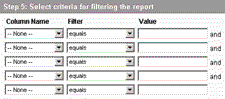
parameters you specify. The filter setup is Step 5 when creating a custom
report and Step 2 when creating a custom view. Here is how to use the
filter:
- Choose a Column Name. You can set a filter for up to 5 columns. Select which columns you want to apply the filter to using the Column Name drop down boxes. The column name is the data field that will be searched. It could be an account name, contact name, phone number, creation date etc. The value you enter in the Value field will be compared to the values stored in the column that you choose, using the filter you choose.
- Next, select a filter type from the Filter drop down box. The filter determines how the search is performed. It is not case sensitive.
- Finally, enter the Value that you are searching for. If you are searching for a last name of Smith, enter Smith or smith. Although the search is not case sensitive, you must enter the value in the proper format. Dates must be in the format of yyyy-mm-dd. If searching for a phone number in the format of 000-0000, a match will not be found if the phone number is formatted as (000) 000-0000 or 000 0000.
Sorting Reports and Views
Summary lists, search results and generated reports
can be sorted in alphabetical order by column. To perform a sort, click
on a column title. The list will be sorted in alphabetical order according
to the column you chose. An ascending icon (  )
will appear beside the column title to show that the list is sorted in
ascending order. Click the column title again to sort the list in reverse
alphabetical order. A descending icon (
)
will appear beside the column title to show that the list is sorted in
ascending order. Click the column title again to sort the list in reverse
alphabetical order. A descending icon (  )
will appear next to the column title to show that the list is sorted in
descending order.
)
will appear next to the column title to show that the list is sorted in
descending order.
)
will appear beside the column title to show that the list is sorted in
ascending order. Click the column title again to sort the list in reverse
alphabetical order. A descending icon ( )
will appear next to the column title to show that the list is sorted in
descending order.