- Go to the home tab page of the data type you want to create the web capture tool for i.e. Accounts, Contacts, Leads etc.
- Click the Web Capture link located in the Tools section. This takes you to the Web Capture page.
- Click the New Capture Tool button. This takes you to the New Web Capture page.
- Fill in the Web Capture Info fields. Use the Select Fields section to specify which fields you want to use in the web capture form.
- Click the Create / Update button to create the web capture tool. You will be then taken back to the Web Capture Tools page.
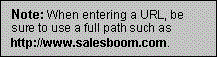
- The next step is to generate the HTML form that users will be filling in. This code will need to be copied into your web site.
 |
Generating HTML Code for your Web Capture Tool
- Go to the home tab page of the data type you want to create the web capture tool for i.e. Accounts, Contacts, Leads etc.
- Click the Web Capture link located in the Tools section. This will take you to the Web Capture page. This page lists all of the Web Capture Tools that have been created.
- From the Featured capture Tools section, select the Capture Tool you want to use on your web site by clicking the View link associated with it. This will take you to the details page for the tool.
- Click the Generate HTML button to generate the HTML that you will be placing on your web site. This will take you to the Generate Capture HTML page.
- Click the Highlight Text button to highlight the generated HTML code.
- Hold the mouse pointer over any portion of the highlighted code and click the right mouse button. A context menu will pop up. Select Copy from the menu.
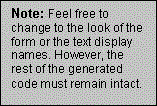
- Paste the code into your web site.
 |
Editing and Deleting a Web Capture Tool
- Go to the home tab page of the data type you want to edit or delete the web capture tool for, i.e. Accounts, Contacts, Leads etc.
- Click the Web Capture link located in the Tools section. This will take you to the Web Capture Tools page.
- From the Featured capture Tools section, select the Capture Tool you want to use on your web site by clicking its associated View link. This will take you to the details page for the tool.
- Click the Edit button. This takes you to the editing page for the tool.
- Make your changes.
- Click the Create / Update button to save your changes.
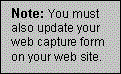
- Generate the HTML code for the tool. Apply the changes to your web site.
- Click the Delete button.
- You will be prompted to confirm that you want to delete the tool.
- Click OK to delete to tool. Click Cancel to cancel the deletion.
Edit
 |
Web Capture Fields