Resources are people, equipment and supplies that are
needed in order to complete the tasks that are involved with a project
Key Resources
The Key Resources section displays
a summary of resources in three categories: Recently Modified,
Recently Created and Recently Viewed. These categories
can be chosen from the Choose drop down box located in
the upper right region of the Key Resources section. To
view an resource in detail click the resource title which
is underlined to signify that it can be selected.
See Also: Sorting Reports and Views
See Also: Sorting Reports and Views
Manage Resources
Creating a Resource
- Select New Resources from the list of Add options located toward the top of the page. Selecting this option will bring you to the New Resource page.
- Fill in your resource information using the Resource Information and Description Information sections of the form. Fields highlighted in red and marked with an asterisk are required fields. All other fields may be left blank if you wish.
- Save your resource by clicking the Save or Save & New button.
 |
Resource Working Hours
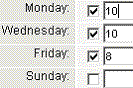
Use the Resource Working Hours section
to specify the days of the week and work hours for each day the
resource is scheduled to work. Check the check box next to each
day of the week that you want to schedule the resource to work.
Enter the number of work hours for each scheduled day in the text
fields provided. When the resource is attached to a task within
a project, these values, along with the resource's hourly rate,
will be used to calculate how much the resource is costing.
See Also:
Edit or Delete a Resource
Saving a Resource
See Also:
Edit or Delete a Resource
Saving a Resource
Saving a Resource
When you have created a new resource or have made
changes to an existing resource you will be able to save the resource
information using either of the following two methods:
i. Select the Save & New button
to save your new resource. You will then be presented with a blank
form on which you can create another new resource.
ii. Select the Save button to save your new resource. This will bring you to a summary page for your new resource. From this page you can Edit, Delete and Print your resource information.
ii. Select the Save button to save your new resource. This will bring you to a summary page for your new resource. From this page you can Edit, Delete and Print your resource information.
Edit or Delete a Resource
When the key resources are displayed on the Resources tab
page or in a search or generated report only a few details are shown.
The resource title is underlined to show that
it can be selected. Select an resource name to view
the resource in detail. You can now Edit, Delete or Print the
resource.
Edit: Click the Edit button to change the information for the resource. Be sure to fill in all required fields. These are highlighted in red and marked with an asterisk. To save your changes click the Save or Save & New button.
Delete: Click the Delete button. You will be prompted to verify that you want to delete the resource. Click OK to delete the resource. Click Cancel to cancel the deletion.
See Also: Saving a Resource
Edit: Click the Edit button to change the information for the resource. Be sure to fill in all required fields. These are highlighted in red and marked with an asterisk. To save your changes click the Save or Save & New button.
Delete: Click the Delete button. You will be prompted to verify that you want to delete the resource. Click OK to delete the resource. Click Cancel to cancel the deletion.
See Also: Saving a Resource
Adding a Resource to a Project
- Click the Resources tab. This will take you to the Resources tab page.
- Make a selection from the View drop down box, located in the upper left corner of the Resources tab page.
- Click the Go! button to generate a list of resources that match your selection. These will be displayed on a new page.
- Select a resource from the list by clicking the resource title, which is underlined to indicate that it can be selected. This will take you to the details page for the resource.
- Scroll down to the Projects section. A list of existing projects is available in the Available Projects drop down box. Select the project you want to add the resource to from this list.
- Click the Add Resource button to add the resource to the project.
Adding a Task to a Resource
- Click the Resources tab. This will take you to the Resources tab page.
- Make a selection from the View drop down box, located in the upper left corner of the Resources tab page.
- Click the Go! button to generate a list of resources that match your selection. These will be displayed on a new page.
- Select a resource from the list by clicking the resource title, which is underlined to indicate that it can be selected. This will take you to the details page for the resource.
- Scroll down to the Tasks section. A list of existing tasks is available in the Available Tasks drop down box. Select the task you want to add to the resource from this list.
- Click the Add Task button to add the task to the resource.