Click the Messages  button
located at the top of the page, above the row of Salesboom.com tabs. This
will take you to the User List page. Here you will see
a list of all users and their current login status. You will also be able
to send instant messages.
button
located at the top of the page, above the row of Salesboom.com tabs. This
will take you to the User List page. Here you will see
a list of all users and their current login status. You will also be able
to send instant messages.
1) View Personal Data
2) Sending Messages
3) Message Archive
4) Search the Instant Message Archive
5) Sending Messages to Key Team Members
button
located at the top of the page, above the row of Salesboom.com tabs. This
will take you to the User List page. Here you will see
a list of all users and their current login status. You will also be able
to send instant messages. 1) View Personal Data
Click the View link located
to the left of a user's name to view personal data about that user.
2) Sending Messages
- To send an instant message to a user, click the Send Message link located to the right of the user's name, under Messenger Options. An Instant Messages dialog box will pop up.
- Type the message in the Message text box. There is a 255 character message limit.
- When you want to send your message, click the Send button located to the right of the message text box. The window will then automatically close.
3) Message Archive
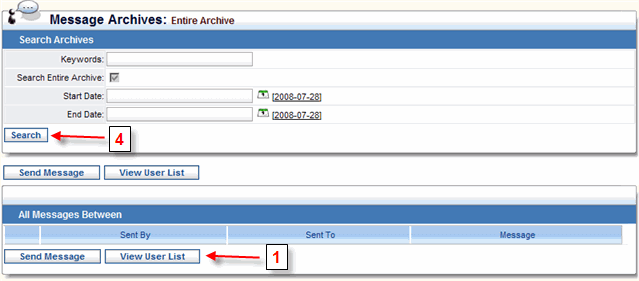
- To view the message history for a user, click the Archive link located to the right of the user's name, under Messenger Options. This will take you to the Message Archives page for that user. This page shows all Salesboom Instant Messages that have been sent by that user to you.
- If you want to send this user an instant message, click the Send Message button.
- To view a list of all users, click the View User List button. This will take you back to the User List page.
See Also: Send a
Message
4) Search the Instant Message Archive
All messages sent via Salesboom's Instant messaging
system are archived. This archive is searchable. A Search
Instant Message Archives form is available from the User
List page. Performing a search using this form will search
the entire Salesboom message archive for your organization. Results
that are returned will be either messages sent to you from another
user or from you to another user. To search the message archive
for messages sent to or from a specific user, select the Archive link
located to the right of the user. This will take you to a page
displaying all messages that you have sent to this user and received
from this user. The Search Instant Message Archives form
enables you to search through all previous instant messages involving
this user. Notice that the Search Entire Archive check
box is unchecked. As long as this check box is not checked, only
messages involving the specified user will be shown. Check this
check box if you want to search for messages you have sent and
received from all users within your organization.
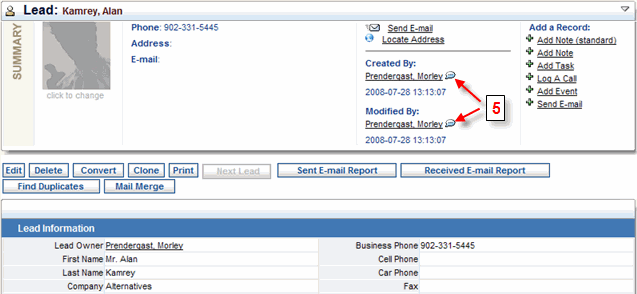
5) Sending Messages to Key Team Members
Salesboom allows you to send instant messages
to key team members. Suppose you need to contact the person who
created a particular lead. Just click the speech bubble icon next
to the creator's name to send them an instant message. You can
also send instant messages to the current lead owner and the user
who last modified the lead. This feature is available for most
record types in Salesboom.